Editor overview
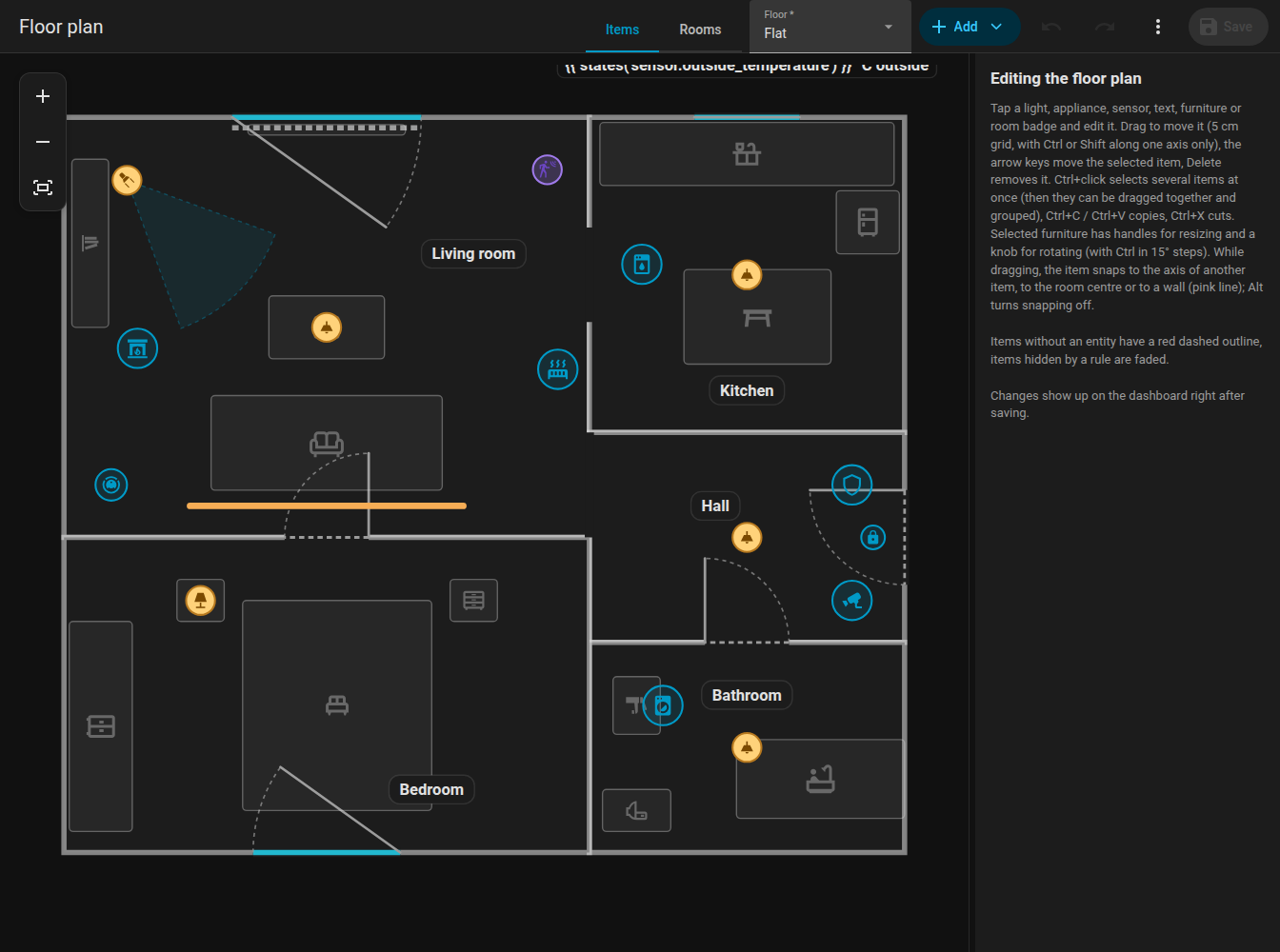
The editor is the sidebar panel Floor plan (URL /fns-floorplan, administrators only). It edits the same plan the card shows. Nothing is changed in Home Assistant until you press Save.
Layout
- Top bar, similar to the automation editor of Home Assistant:
- the mode switch Items / Rooms,
- the floor selector (when the plan has more floors),
- Add (a menu of everything that can be placed),
- undo and redo, zoom buttons (+, -, fit the whole plan),
- Save,
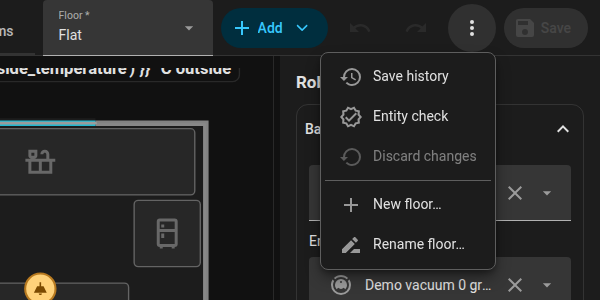
- the three-dot menu with History, Check, Discard changes and the floor management (new, rename, delete). A dot on the menu warns when the check found problems.
- The plan in the middle. Scroll the wheel to zoom around the cursor, drag an empty spot to pan, pinch with two fingers on a touch screen.
- The side panel on the right shows the form of the selected item. Drag the strip between the plan and the panel to change its width (260 px to 60 % of the window, at most 720 px); the width is remembered in the browser.
On a phone (narrower than 800 px) the plan fills the screen and the form opens in a near full-height sheet, like an entity's more-info dialog, when you tap an item, add one or open History or Check. Dragging an item does not open the sheet. Close it with the cross.
Modes
| Mode | What you edit | The rest |
|---|---|---|
| Items | Lights, LED strips, appliances, sensors, text items, furniture, room labels | Rooms are shown, but locked |
| Rooms | Rooms (corners, walls, whole rooms), doors and windows | Items are dimmed and locked |
| Look | The colours of the plan | The plan is shown as a live card preview, nothing can be moved |
See Rooms, Doors and windows, Items and Look.
Selecting, moving, nudging
- Click an item to select it, drag it to move it. The grid is 5 cm.
- Arrow keys nudge the selection by 5 cm, Delete removes it.
- Ctrl+click adds items to the selection. Selected items move, nudge, copy and delete together.
- Group (in the form of a multi-selection) stores a
group, so clicking one member always selects the whole group. - Esc clears the selection.
- While dragging, pink snap guides show alignment with other items, the centre of a room and walls.
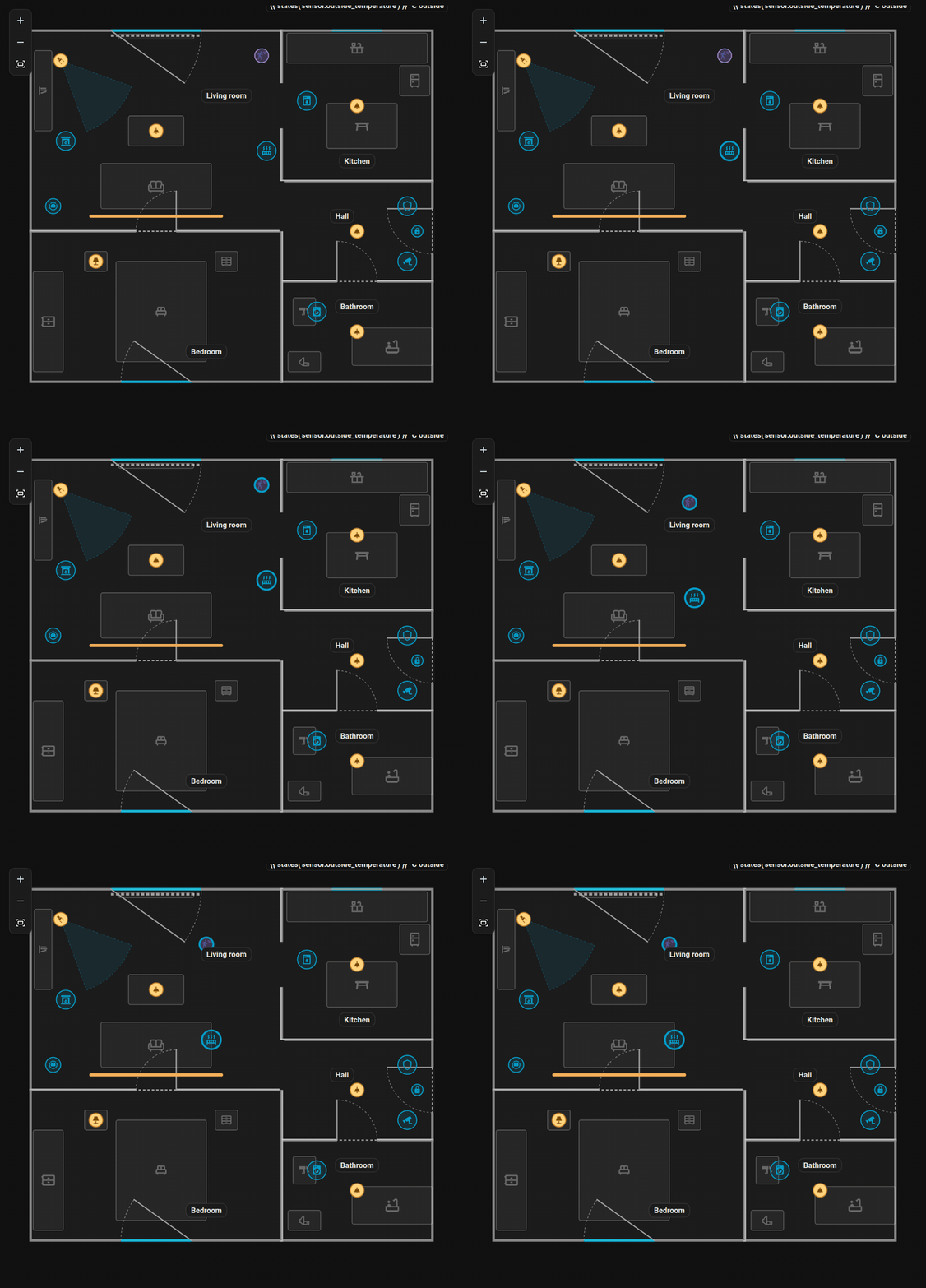
Ctrl+click selects two items, then they are dragged together.
Keyboard shortcuts
| Shortcut | Action |
|---|---|
| Ctrl+Z | Undo (100 steps) |
| Ctrl+Y or Ctrl+Shift+Z | Redo |
| Ctrl+C / Ctrl+X / Ctrl+V | Copy / cut / paste items or rooms. Pasting on the same floor offsets by 30 / 50 cm, on another floor the copy lands at the same place. A room is copied with its doors and windows. |
| Ctrl + click | Add to the selection |
| Del | Delete the selection (a selected room corner is deleted, minimum 3 corners) |
| Arrow keys | Nudge by 5 cm |
| Alt while dragging | Turn snapping and guides off |
| Ctrl while dragging | Keep the movement on one axis (chosen by the first 5 cm of the move). Dragging a room corner with Ctrl instead snaps the walls to 15 degree steps, see Rooms. |
| Ctrl while rotating | Rotate in steps of 15 degrees instead of 1 degree |
| Esc | Clear the selection |
On macOS use Cmd instead of Ctrl.
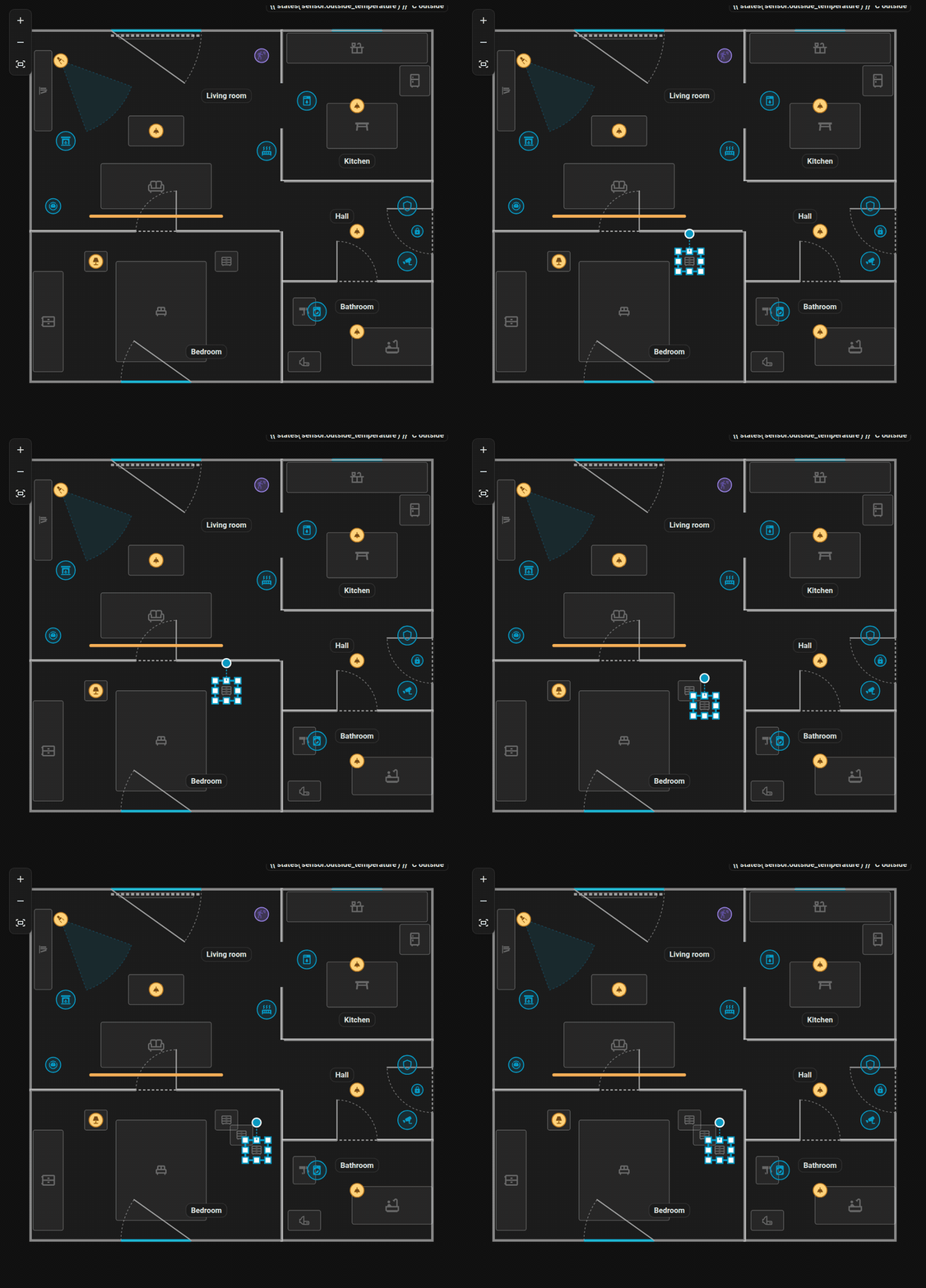
Ctrl+C and Ctrl+V duplicate an item; the copy is offset and selected.
Undo, redo and saving
Every change goes on the undo stack (100 steps). The revision is never undone. The editor warns when you leave with unsaved changes.
Save writes the whole plan. Every save increases the plan's revision rev. The editor sends the revision it loaded, and if someone else saved a newer plan meanwhile, the save is refused with a conflict message: choose Discard changes to reload and repeat your edits. See Websocket API.
Saved plans are kept: see History and check.
Levels (floors)
A plan without levels has one floor. In the three-dot menu choose Floors to add a floor, rename it or delete it (a deleted floor takes its rooms and items with it; the first floor cannot be deleted). A new floor starts in the Rooms mode.
Rooms and items belong to a floor with the level key; ones without it belong to the first floor. Doors and windows follow their room. The floor selector at the top switches the floor being edited, and the card shows floor tabs. See the Plan format.
Tracing image
To draw a plan over an existing drawing, upload an image under a floor: floor management, Tracing image. Move and resize it, and set its opacity. The image is only visible in the editor, never on the card. Allowed formats are PNG, JPG, WEBP and SVG up to 15 MB. The file is stored in www/fns_floorplan/ of your configuration (served as /local/fns_floorplan/...).
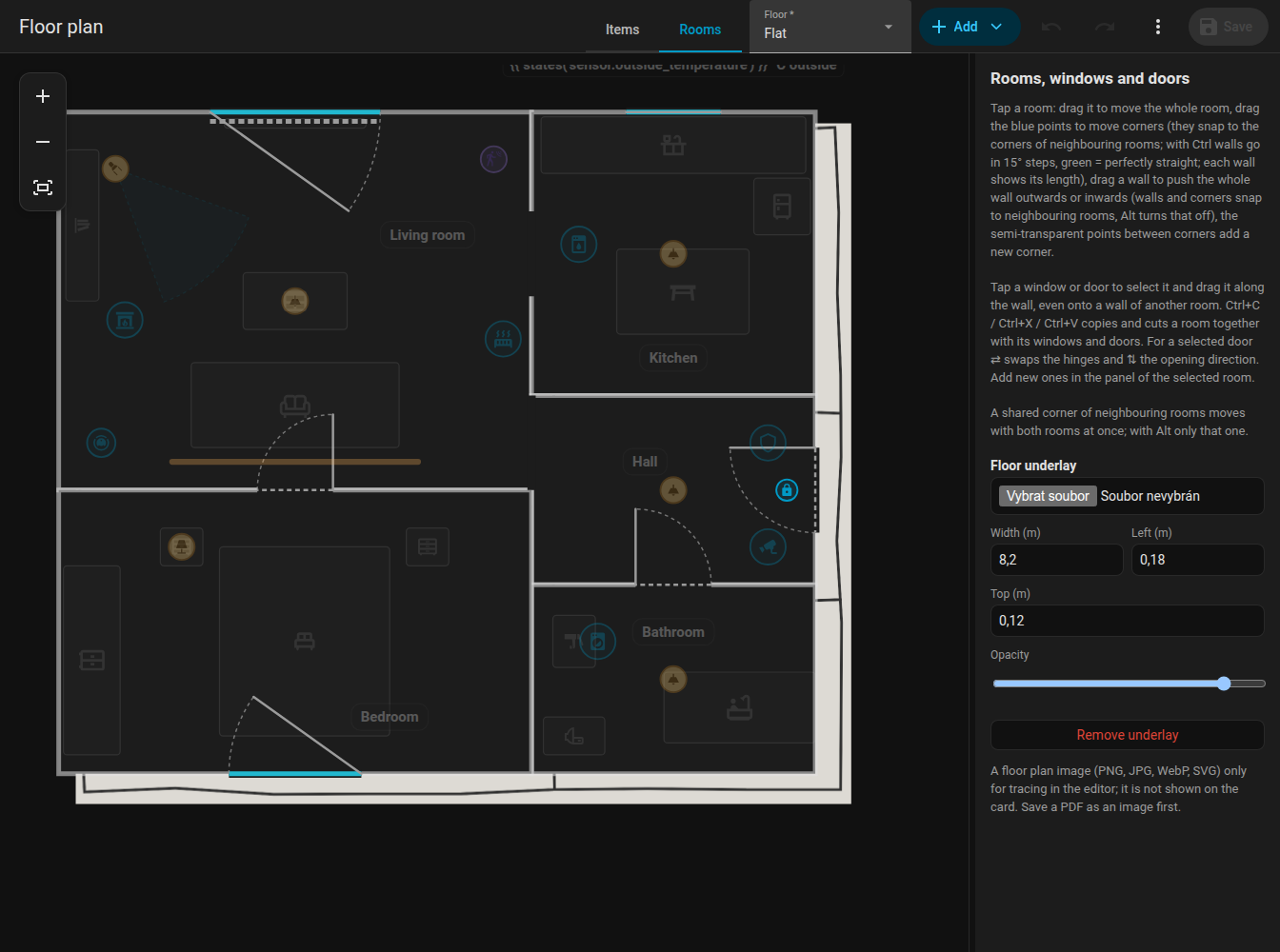
Native Home Assistant fields
The forms use Home Assistant's own selectors (entity picker, number, select, switch, colour picker, icon picker) in collapsible sections (Basic, When running, Appearance, Position, Actions, Rules). Which sections are open is remembered. The entity picker also searches by name.
Items without an entity have a red dashed outline, so you find unfinished work at a glance.