Quick start
From zero to a working plan in ten steps. It assumes the integration is installed.
- Open the editor. Click Floor plan in the sidebar, or open
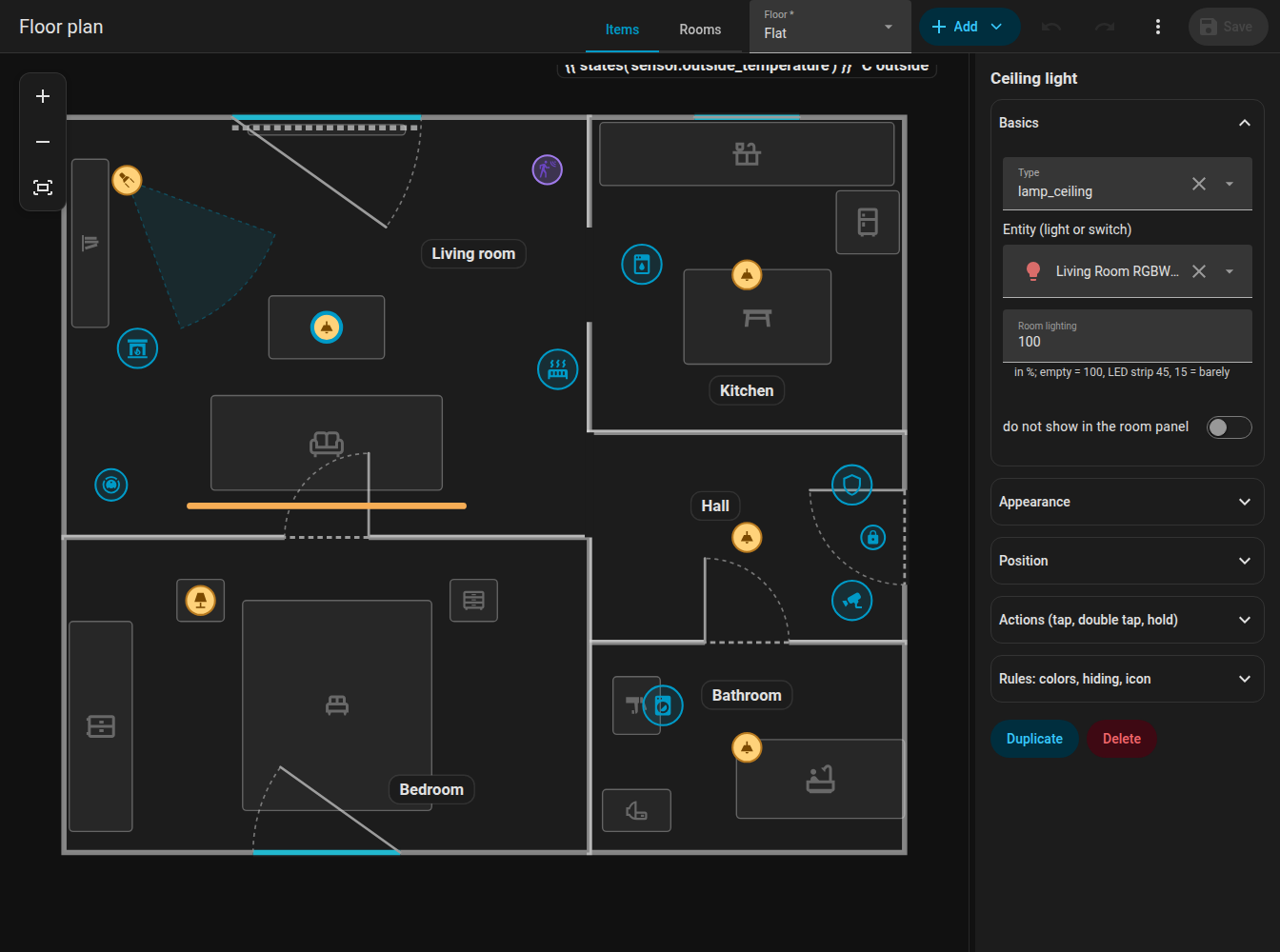
/fns-floorplan. - Switch to Rooms. The tabs at the top are Items, Rooms and Look. Choose Rooms.
- Add a room. Open Add and choose Room. A square of 2 by 2 metres appears. Drag its blue corner points to the shape of your room, drag the half-transparent points between corners to add a corner. Details in Rooms.
- Name it. In the side panel enter the room name, and optionally a temperature and a humidity entity.
- Add more rooms. Drag them next to each other, corners snap to the corners of neighbours within 15 cm.
- Add doors and windows. Select a room, choose a wall in the side panel and add a door or a window; slide it along the wall. See Doors and windows.
- Switch to Items. Add lights, appliances, sensors and furniture with Add. Pick an entity for each. See Items.
- Save. Click Save. The plan is stored in Home Assistant and every open card redraws by itself.
-
Add the card. Edit a dashboard, Add card, search for FNS Floorplan, or use YAML:
type: custom:fns-floorplan-card mode: auto rotate: auto -
Try it. Turn a light on, open a door contact, start the dishwasher. Tap a room to open the room panel.
Coming from NeonPlan 3D?
FNS Floorplan was inspired by NeonPlan 3D. If you already drew your home there, you can convert it once instead of starting from scratch:
- Get the building from NeonPlan with the websocket command
neonplan3d/building/getand save the result asbuilding.json. -
Convert it:
python3 tools/import_neonplan.py building.json > plan.jsonAn optional second file (
extras.json) adds what NeonPlan does not know: devices, label positions and rules. See the comment at the top of the script. -
Save
plan.jsonwithfns_floorplan/plan/save(see Websocket API) and fine-tune the result in the editor.
Warning
The import replaces the whole plan. Run it once at the beginning, not after you have edited the plan.
Good next steps
- Make an appliance react to more than its state with Rules.
- Add a robot vacuum: Robot vacuum.
- Put a floor plan image under the plan and trace it: Editor overview.
- Several floors: Editor overview.
- Change the colours of walls, floors, labels and states in the Look tab.