Rooms
Switch the editor to Rooms to edit the shape of the flat. Everything else is dimmed and locked in this mode.
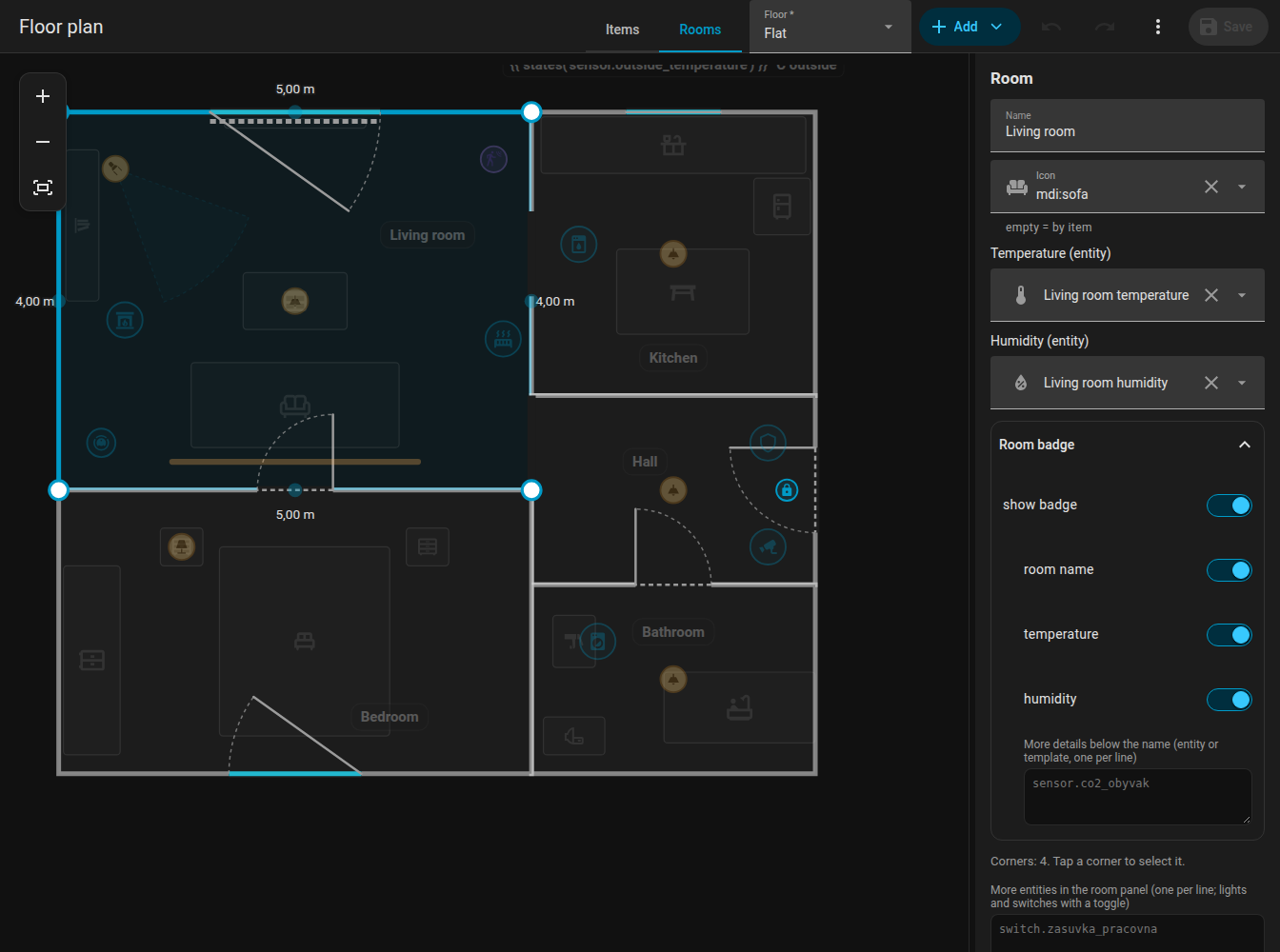
Adding a room
Add, Room inserts a square of 2 by 2 metres. Every room is its own polygon with id, name and points in metres (x right, z down).
Corners
- Click a room to select it. The blue points are its corners; drag them. The half-transparent points between corners add a new corner when you drag them.
- Select a corner and press Delete (or use the button in the side panel) to remove it. A room needs at least three corners.
- The side panel shows the coordinates of the selected corner and lets you type them.
- Adding or removing a corner keeps the doors and windows of the room where they are.
Walls and whole rooms
- Drag a whole wall of the selected room: both its corners move perpendicular to the wall. A corner shared with a neighbour goes with it.
- Drag the room itself to move the whole room.
- Arrow keys nudge the selected room, corner or wall by 5 cm.
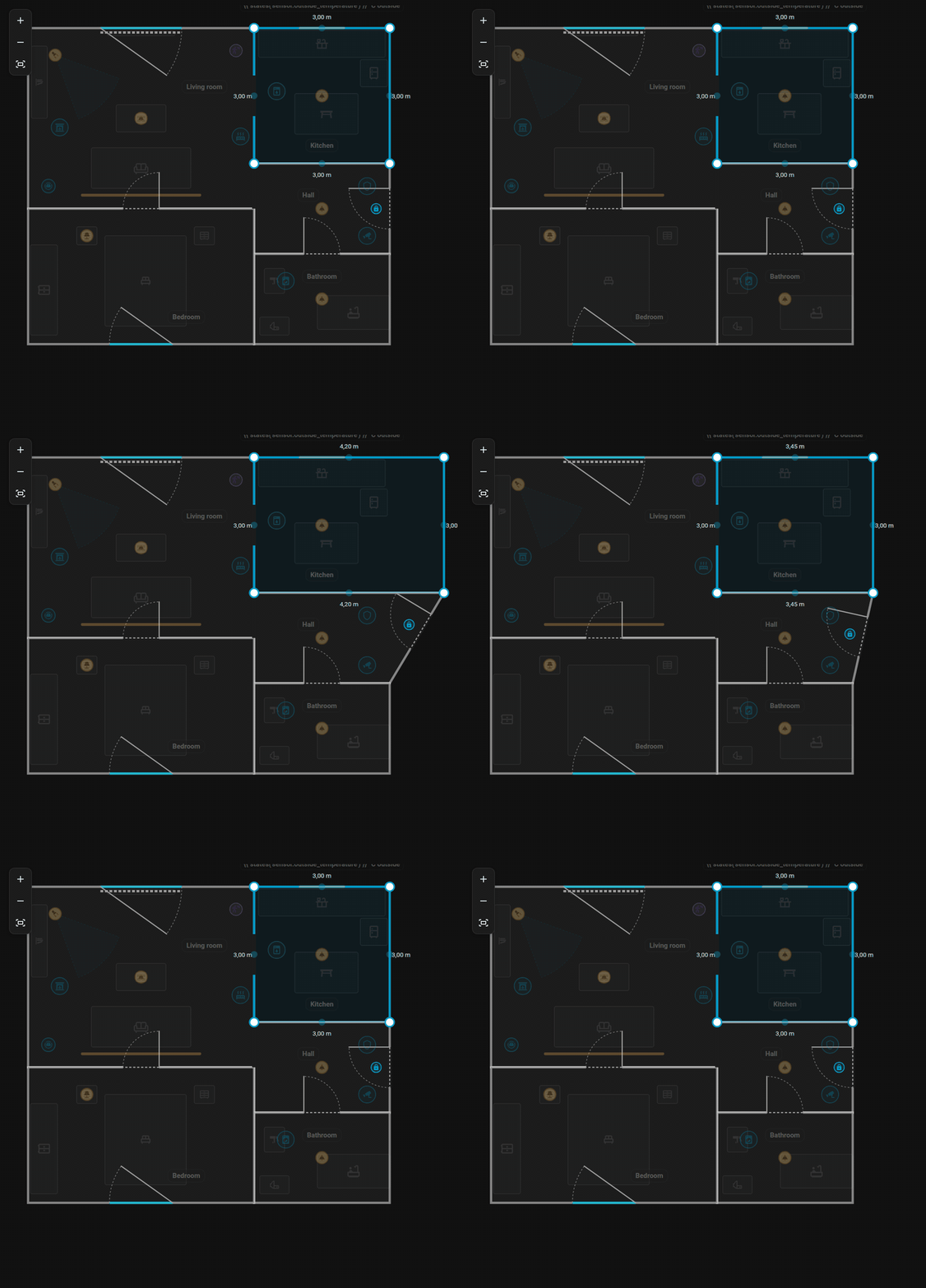
Dragging a whole wall: the lengths of the neighbouring walls update.
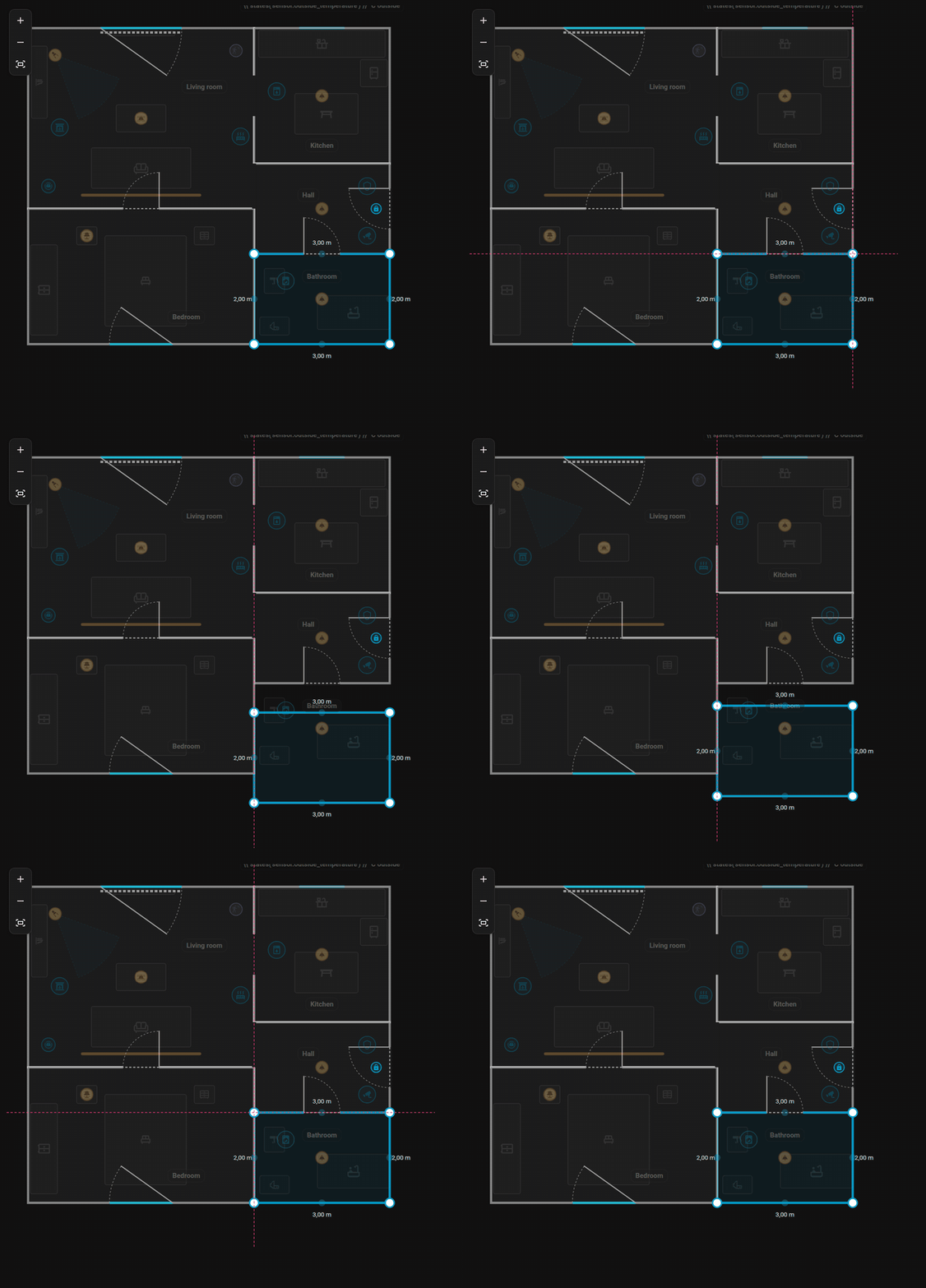
Moving a whole room by dragging its floor.
Snapping to neighbours
Corners, walls and whole rooms snap to corners and walls of other rooms on the same floor within 15 cm, shown by a pink guide line. Hold Alt to turn snapping off. Otherwise the grid of 5 cm applies.
A corner snaps to the corner of the neighbouring room.
Shared walls
Each room has its own polygon, so a wall between two rooms is two walls on top of each other. When you drag a corner that sits on top of another room's corner, both move together (Alt moves only one). Dragging a wall also moves corners of other rooms that lie anywhere on it. If you need to separate them on purpose, hold Alt.
Angles and lengths
- The selected room shows the length of every wall (outside the room), live while dragging.
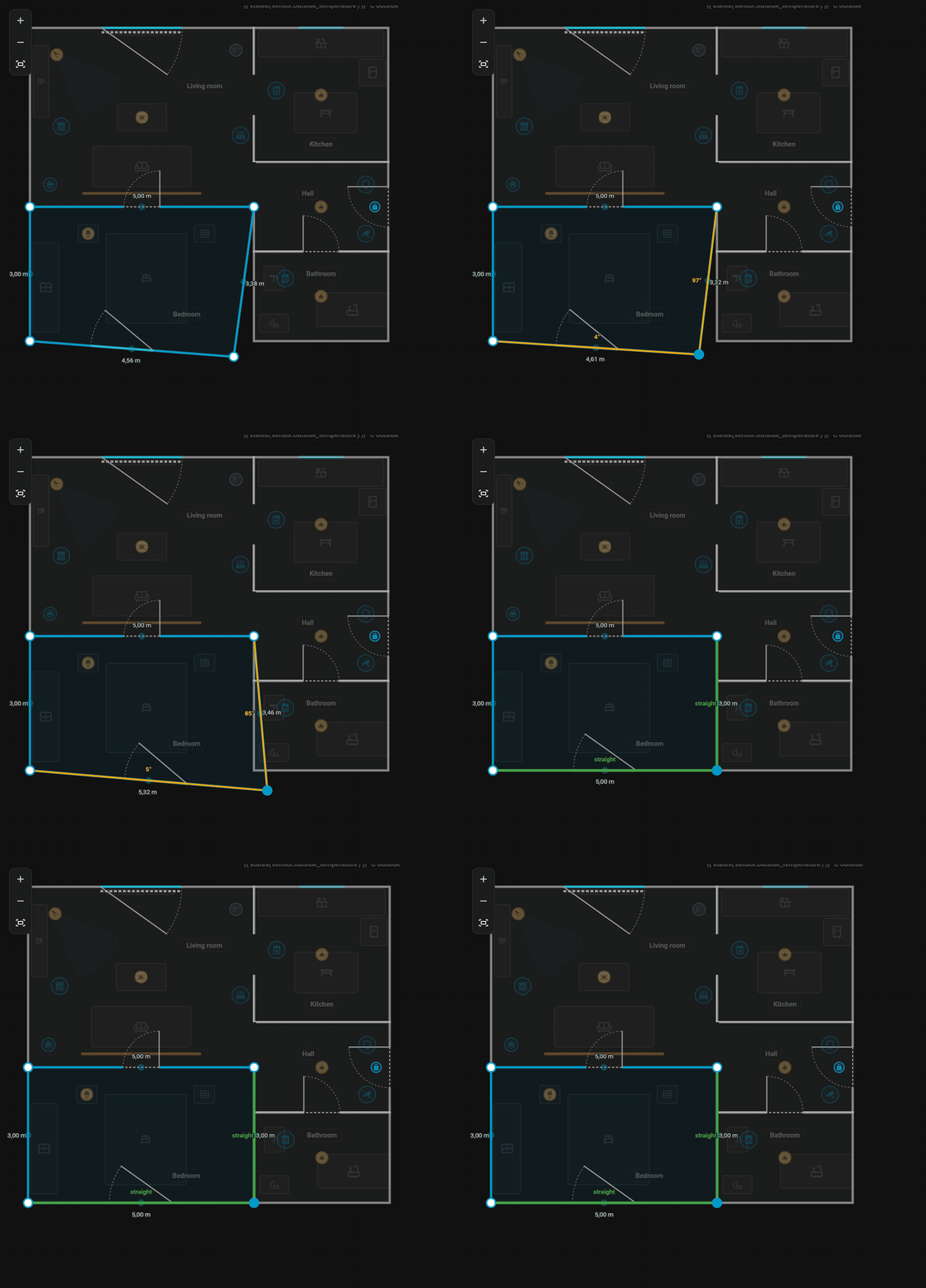
- Hold Ctrl while dragging a corner: the wall to the neighbouring corner snaps to 15 degree steps, the length to 5 cm. Near the intersection of the two walls the corner jumps to it, which gives a right angle.
- The walls of the selected corner are marked: a green straight marker when a wall is exactly horizontal or vertical, otherwise an orange marker with the angle.
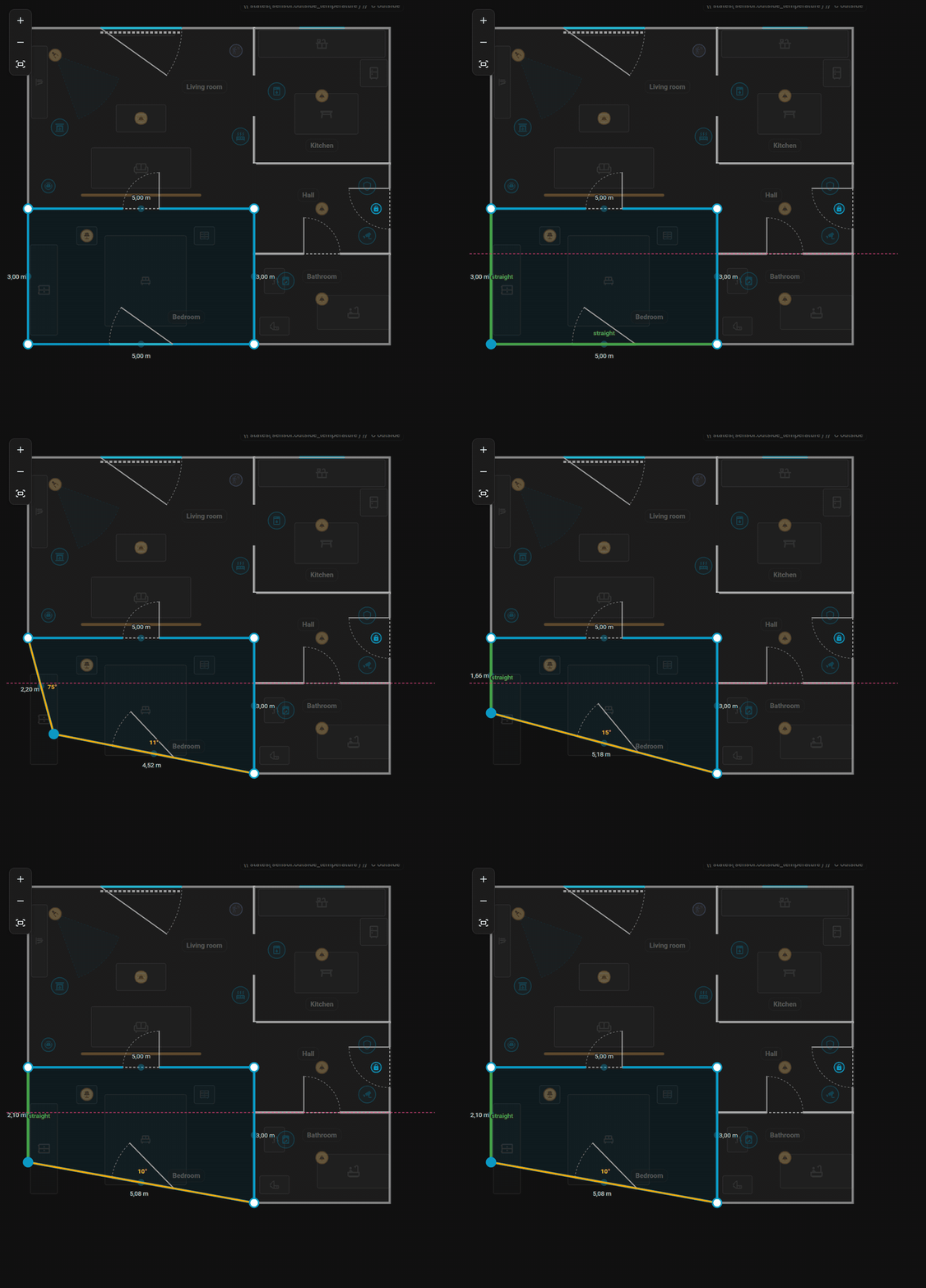
Dragging a corner with Ctrl held: 15 degree steps and the green "straight" marker.
Name, icon and climate
| Field | Meaning |
|---|---|
| Name | Shown in the room label and in the room panel |
| Icon | Shown in the header of the room panel (icon) |
| Temperature | A temperature sensor (temperature) |
| Humidity | A humidity sensor (humidity) |
| Extra entities | Entities for the room panel (sheet_extra), one per line; Add an entity below the field picks one from Home Assistant |
Both lists (extra entities and the label's details) take one entry per line, with or without a leading -. They also take a template that renders entity ids, one per line, as a list or separated by commas. A template over several lines is one entry:
{% if is_state("sun.sun", "above_horizon") -%}
- light.terrace
- switch.blinds
{%- else -%}
- light.night_lamp
{%- endif %}
Room label
Every room shows a label (a badge) with its name and the values. Options:
| Key | Effect |
|---|---|
label_info |
A list of what to show: temperature, humidity, entity ids or templates. Default: temperature and humidity. In the form, Add an entity adds an entity as a new line |
label_name: false |
Hides the name, keeps the values |
label_hidden: true |
Hides the whole label |
label_rotation |
Rotates the label (degrees) |
label_size |
Size of the label: xs, s, l, xl or xxl (default m) |
In the Items mode you can drag a label to a new place; the position is stored in labels. Rooms also take rules: tint colours the floor, hide hides the label.
Deleting
Delete room in the side panel removes the room with its doors, windows and label.
Next: Doors and windows.