Doors and windows
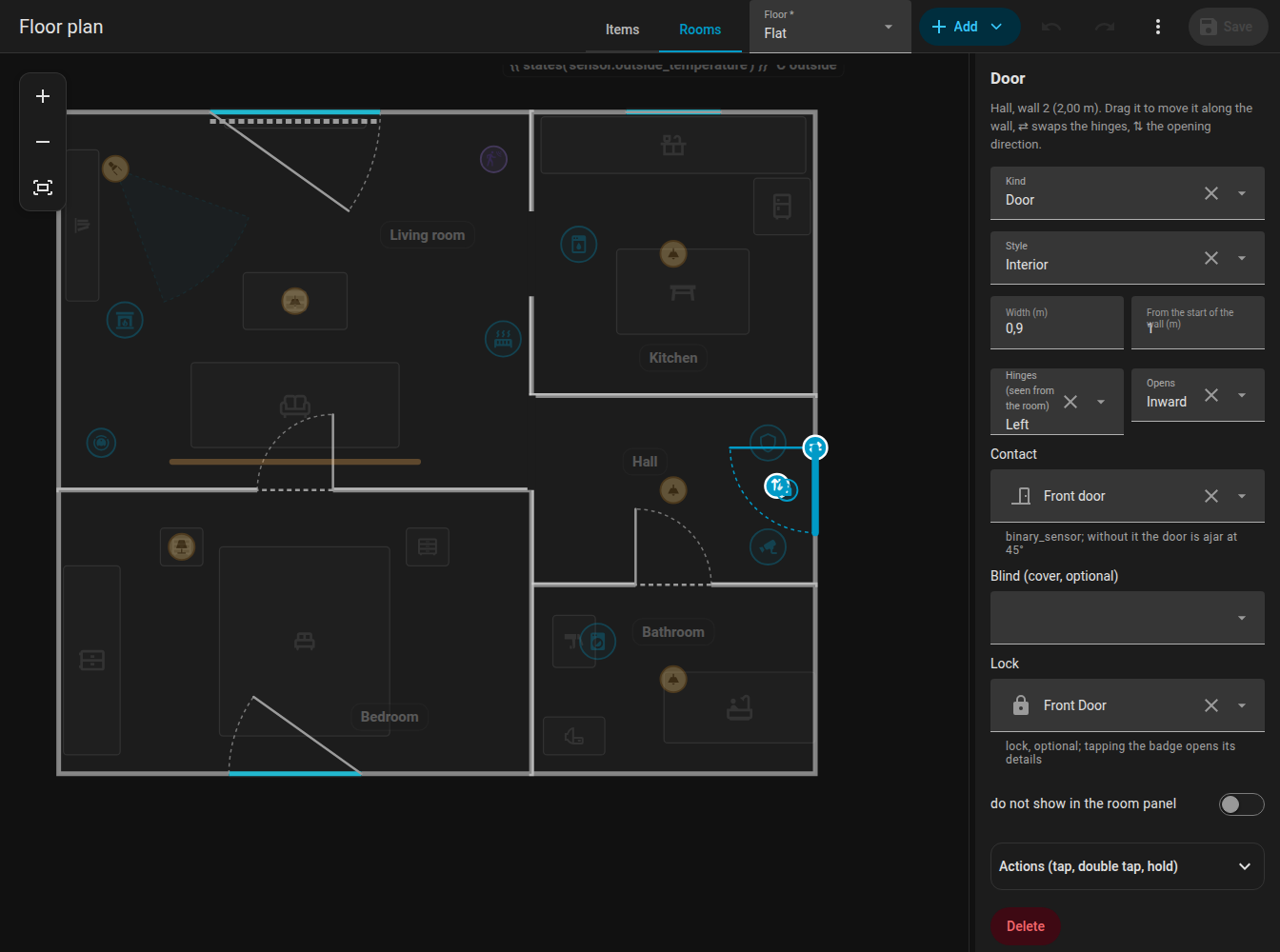
Doors and windows ("openings") belong to a wall of a room. Edit them in the Rooms mode.
Adding and moving
- Select a room and choose the wall in the side panel (or select the room and use the add buttons for door / window on the chosen wall).
- A new door or window appears on that wall.
- Click it to select it and drag it along the wall to slide it. Arrow keys nudge it by 5 cm.
- Drag it to the wall of another room and it moves there (the nearest wall on the floor wins).
Adding or removing a room corner never moves an opening away from where it was.
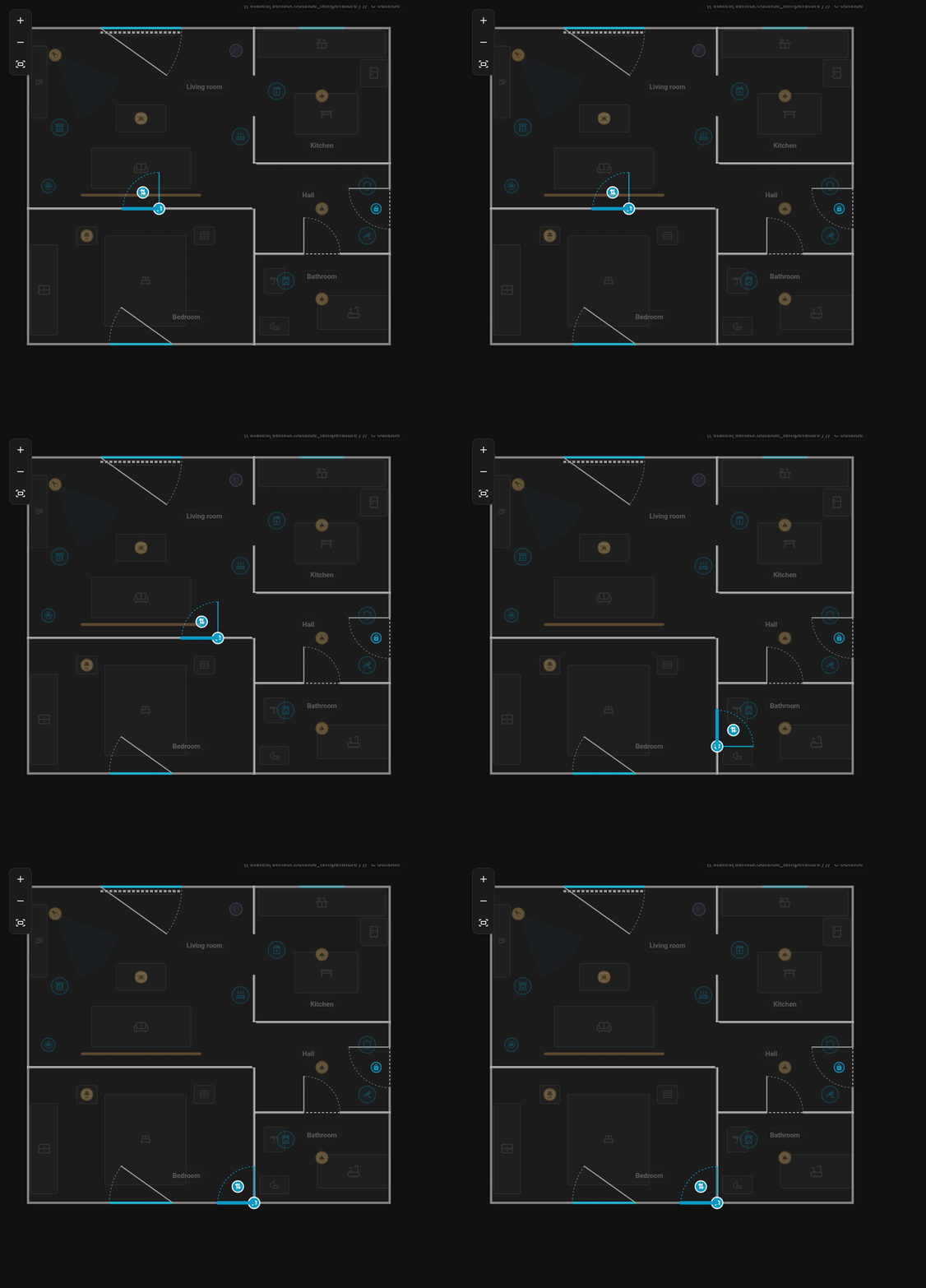
Sliding a door along its wall and dragging it onto the wall of another room.
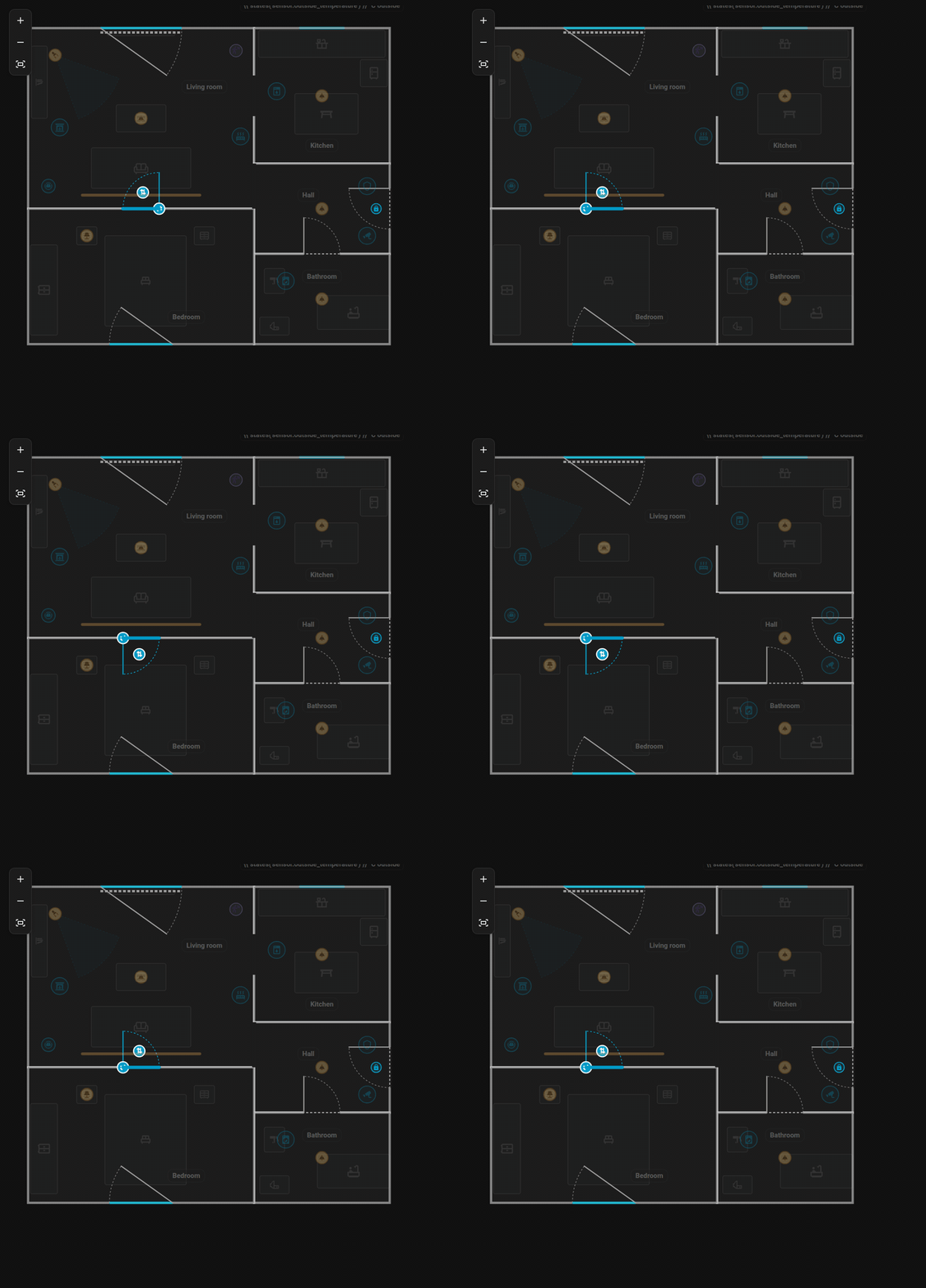
The two handles of a selected door swap the hinge side and the opening direction.
Settings
| Setting | Key | Meaning |
|---|---|---|
| Type | type |
door or window |
| Door style | style |
A normal door (interior, entrance, glazed) or passage = only an opening without a leaf |
| Width | width |
In metres |
| Offset | offset |
Distance of the opening's centre from the start of the wall |
| Hinge | hinge |
left or right, seen from inside the room |
| Swing | swing |
in or out |
| Contact | contact |
A binary sensor (door / window contact) |
| Lock | lock |
A lock entity shown at the door |
| Blind | blind |
A cover entity drawn as a bar along the window |
The leaf and the arc show the hinge and the swing. With the opening selected, the button flip hinge mirrors the hinge side and flip swing the opening direction, right on the plan.
Contact sensor
With a contact, the opening animates open (doors swing to 90 degrees), glows orange while open, and pulses for the first 6 seconds after opening. Without a contact:
- a door is drawn ajar at 45 degrees,
- a window or glazed balcony door stays closed.
Tapping an opening on the card opens the contact's details (more-info). You can set tap actions on openings too.
Locks
lock takes a lock entity and draws a small lock badge at the door, inside the room. It is green when locked, orange when unlocked, red when jammed and blue with a ring while locking or unlocking. Tapping it only opens the details, so a door is never unlocked by accident. The size is lock_size (default S).
Blinds
blind is a cover entity (a roller shutter or blind). It is drawn as a bar along the window that gets longer as the blind closes, on a dotted track along the whole width of the window: 50 % closed fills half of it. While the cover is moving the bar animates. Tapping the blind opens its details.
| Key | Effect |
|---|---|
blind_side: out |
Draws the blind outside the wall instead of inside |
blind_invert: true |
For blinds that report 100 for "closed" |
The position comes from the cover's current_position, without it from closed.
Example
openings:
  - id: d_front
    room_id: hall
    edge: 0
    offset: 1.1
    width: 0.9
    type: door
    hinge: left
    swing: in
    contact: binary_sensor.front_door
    lock: lock.front_door
  - id: w_living
    room_id: living_room
    edge: 2
    offset: 1.8
    width: 1.4
    type: window
    contact: binary_sensor.living_room_window
    blind: cover.living_room_blind
    blind_side: out
Next: Items. Reference: Plan format.